AI Upscaling vs Traditional Resizing 2026
Side-by-side comparison of AI upscaling vs traditional bicubic interpolation. See real results and learn which method produces better 2K and 4K enlargements.
You have a 1080p image. You need it at 4K. You open Photoshop, resize it, and… it looks soft. Edges are blurry. Textures look waxy. The image got bigger, but it definitely didn't get better.
Then someone tells you about AI upscaling. Supposedly it "reconstructs detail" and "uses machine learning to predict what should be there." Sounds like marketing buzzwords.
How Traditional Resizing Actually Works
Traditional resizing — the kind you get in Photoshop, Preview, or any basic image editor — uses mathematical interpolation.
The software looks at each pixel in your original image, then guesses what the new pixels between them should look like. The most common method is bicubic interpolation: it looks at the 16 nearest pixels around each new pixel and calculates a weighted average.
is created
The problem: interpolation can't create detail that doesn't exist. If your original image doesn't have fine texture in someone's sweater, the resized version won't either. The software is just averaging what's already there.
✅ When traditional resizing works well:
- ✓ Resizing down (making an image smaller)
- ✓ Very small upscaling (1.2x-1.5x)
- ✓ Images that don't need sharp details
❌ When it fails:
- ✗ Large upscaling (2x-4x)
- ✗ Photos with fine textures (skin, fabric, hair)
- ✗ Any image that needs to look sharp at full size
How AI Upscaling Actually Works
AI upscaling takes a completely different approach.
Instead of following a fixed mathematical formula, AI models are trained on millions of image pairs — low-resolution versions and high-resolution versions of the same content. The model learns what high-resolution images should look like, and then uses that knowledge to reconstruct missing detail.
Models like Real-ESRGAN (used by many web-based AI upscalers) have been trained specifically on real-world degradation patterns: JPEG compression artifacts, camera noise, motion blur, and basic low-resolution scaling. This means they're not just "making images bigger" — they're actively repairing common image quality problems while upscaling.
✅ When AI upscaling works well:
- ✓ Large upscaling (2x-4x)
- ✓ Photos with fine textures and details
- ✓ Images with moderate JPEG compression artifacts
❌ When it doesn't:
- ✗ Severely damaged images (extreme compression)
- ✗ Out-of-focus originals
- ✗ Heavy noise (AI can amplify noise)
A Direct Comparison: Same Images, Both Methods
📦 Product Photo (E-commerce)
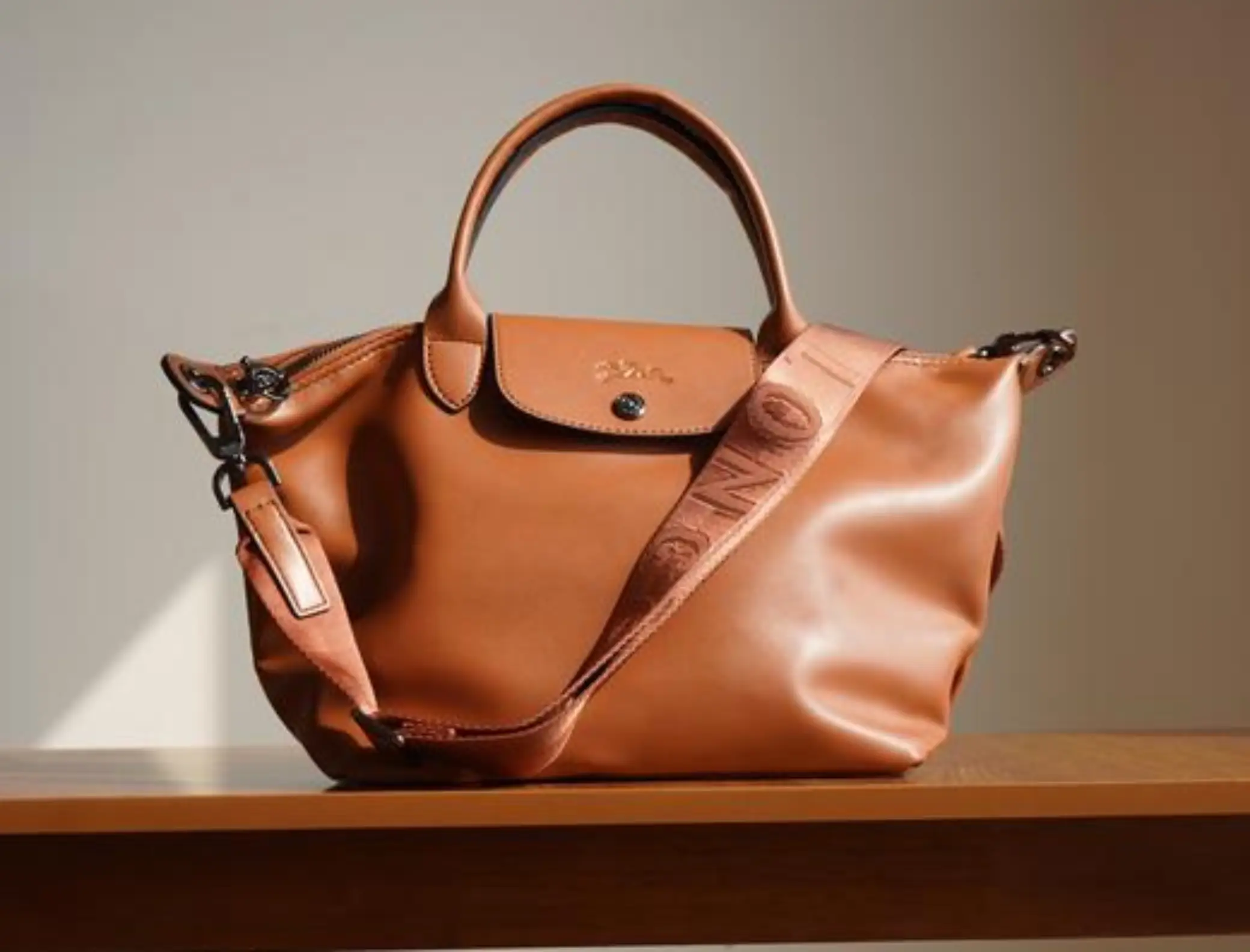
Edges look soft, product texture is waxy
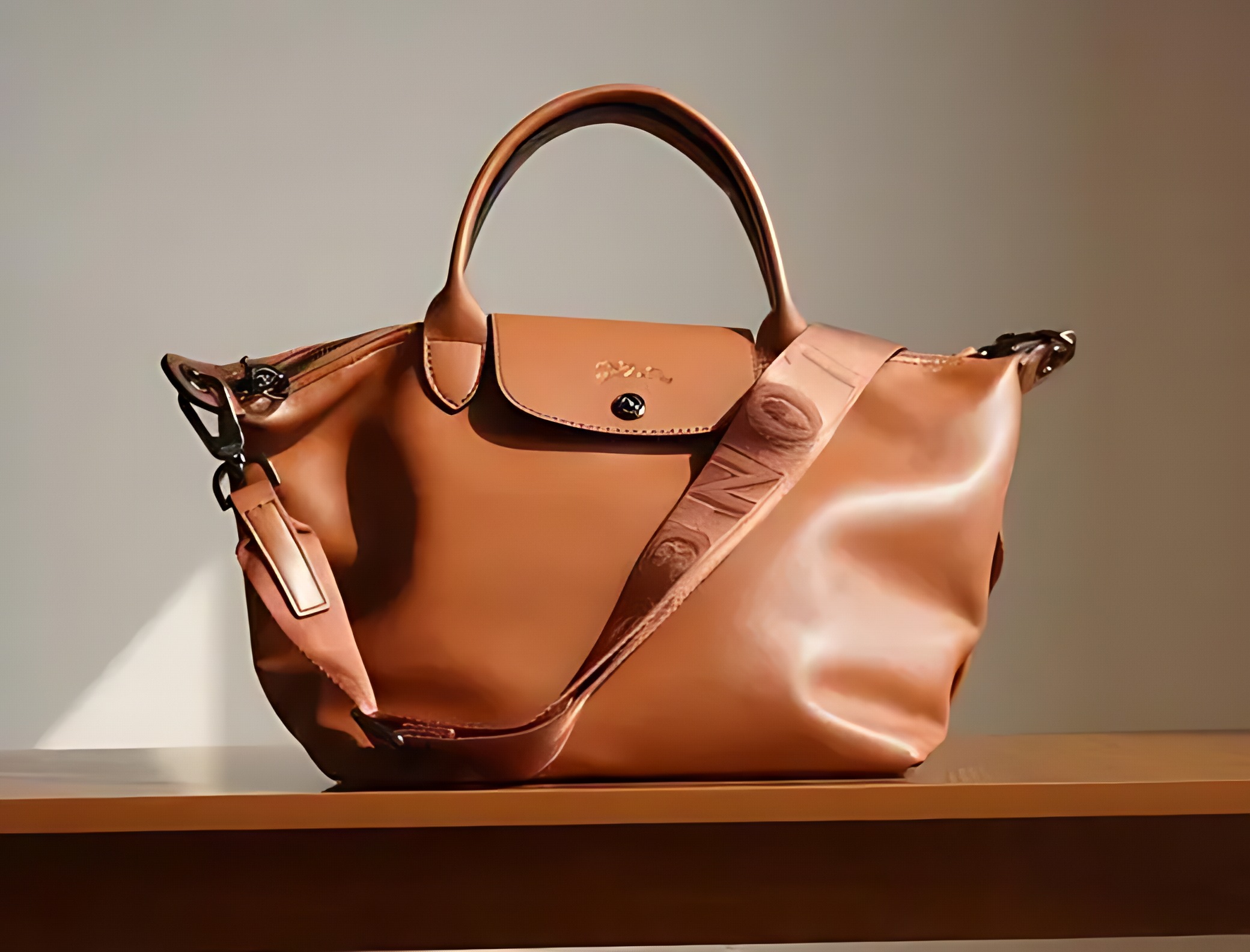
Crisp edges, fabric texture is visible
🏞️ Landscape Photo
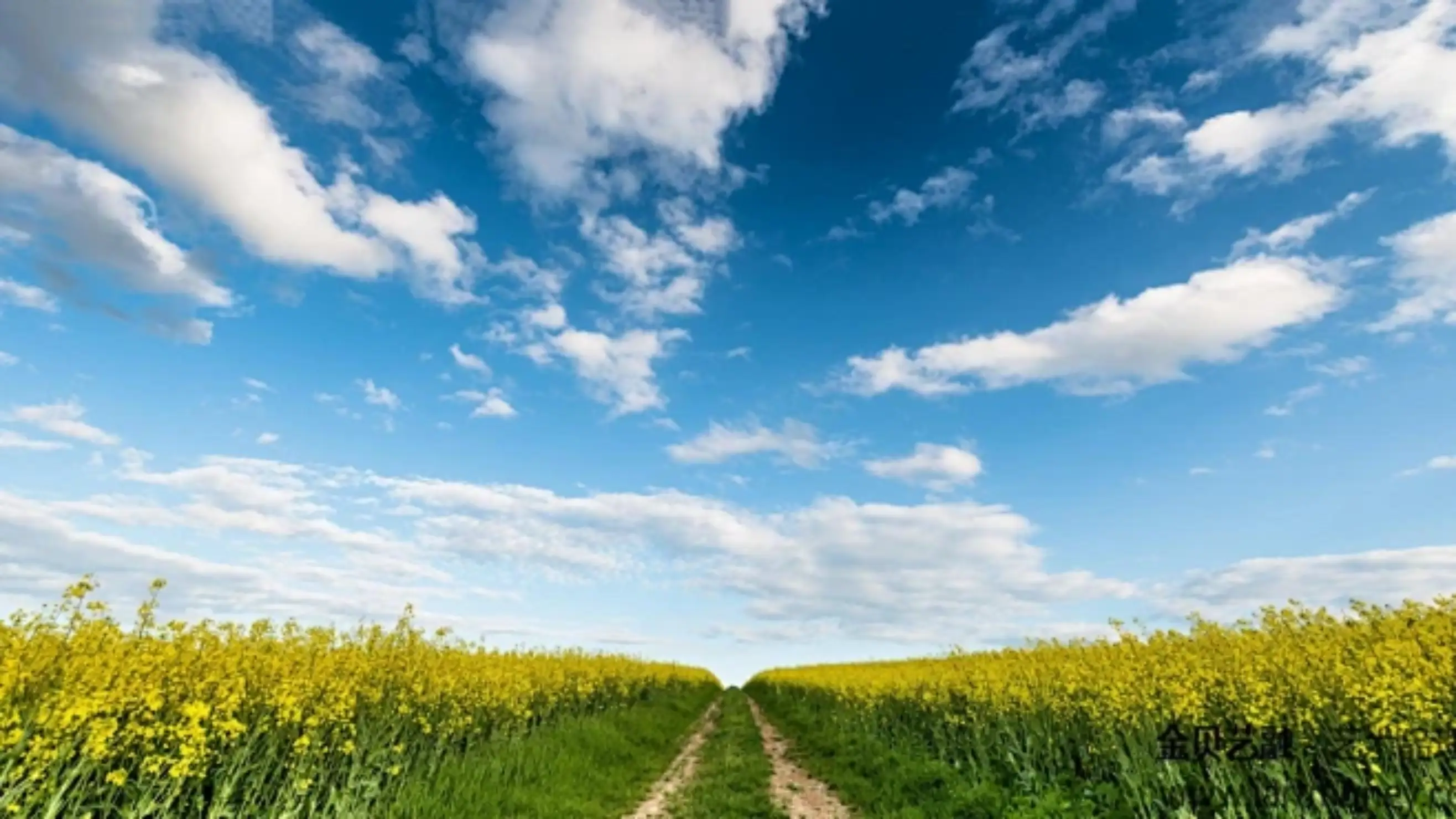
Foliage blurs together, sky looks flat
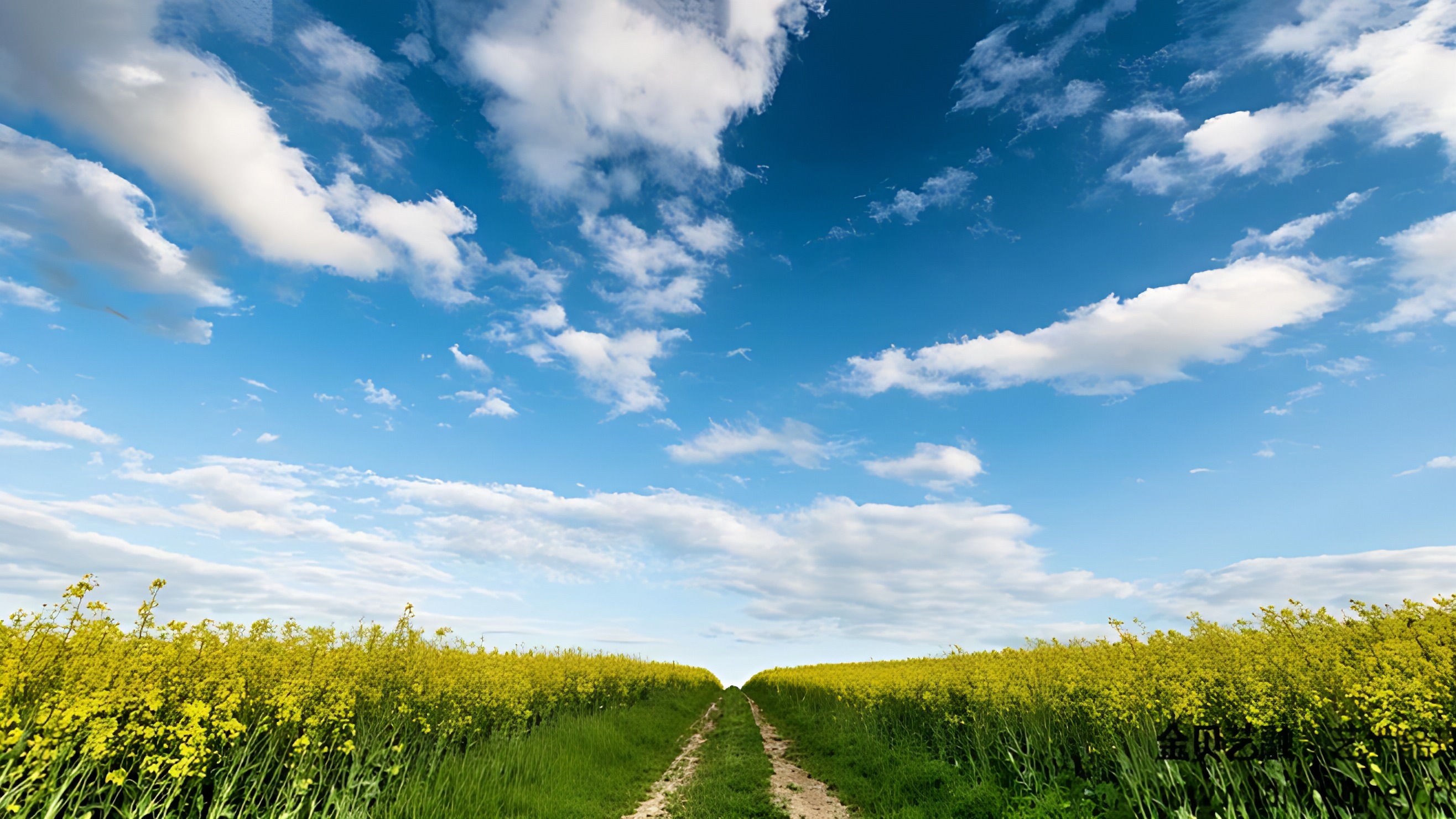
Individual leaves are distinguishable
🎨 Anime/Illustration

Lines look soft, color areas have artifacts

Lines are crisp, color areas are clean
When Traditional Resizing Is Actually Better
1. When you're in a hurry
Traditional resizing is instant. AI upscaling takes 10-30 seconds per image. If you're resizing 500 images for a web gallery and each image only needs a 1.2x upscale, traditional resizing is faster and the quality difference is negligible.
2. When you're resizing down
If you're making an image smaller, traditional resizing works perfectly. You're discarding pixels, not creating new ones.
3. When you need exact pixel-perfect control
Traditional resizing preserves the exact color values of your original — it just blends them. AI upscaling creates new pixels, which means color values can shift slightly.
When AI Upscaling Wins
1. Large upscales (2x-4x)
The bigger the upscale, the more traditional resizing falls apart. At 2x, the difference is noticeable. At 4x, it's dramatic.
2. Printing at large sizes
A 1080p image at 300 DPI prints at about 6×4 inches. If you need an A4 print or a small poster, AI upscaling to 4K gives you 12.8×7.2 inches at 300 DPI — usable for most print applications.
3. Photos with detailed textures
Skin pores, fabric weaves, foliage, hair — these are exactly the types of detail that AI upscaling reconstructs well and traditional resizing destroys.
A Practical Decision Framework
| Your Situation | Best Method | Why |
|---|---|---|
| Need 1.2x-1.5x upscale, in a hurry | Traditional resizing | Speed, negligible quality difference |
| Need 2x-4x upscale for printing or display | AI upscaling | Traditional looks noticeably blurry |
| Resizing from 6K → 4K | Traditional resizing | You're discarding pixels, no reconstruction needed |
| Photo with fine textures (skin, fabric, hair) | AI upscaling | These details get destroyed by traditional resizing |
| Illustration, anime, or digital art | AI upscaling | Traditional resizing creates artifacts on clean lines |
How to Actually Do AI Upscaling
If you want to test this yourself, here's the simplest way:
- 1 Pick an image — any photo or illustration that's 1080p or higher
- 2 Upload it to an AI upscaler that supports 2K/4K output
- 3 Select your target resolution — 2K for moderate upscaling, 4K for maximum quality
- 4 Download and compare — check the result at 100% zoom against the original
I use ImgUpscaleAI because it handles 2x and 4x upscaling with separate models for photos and illustrations — you pick the right model for your image type, and all processing happens in your browser. Free for 3 upscales per day.
If you specifically need a fixed resolution output (like converting any image to exactly 4K or 2K), try the 2K/4K Upscaler instead — it lets you pick your target resolution directly.
And if you frequently work with different image formats, a free browser-based image format converter can save you the round-trip through desktop software.
Frequently Asked Questions
Will AI upscaling make my image look exactly like it was shot at 4K?
Can I use AI on any type of image?
Is AI upscaling always the right choice?
How long does it take?
Related Articles
Ready to Try AI Upscaling?
See the difference for yourself. Upload your image and compare traditional resizing with AI upscaling.
Try ImgUpscaleAI (2x/4x Upscaling)
Multiple models for photos and illustrations. No sign-up. No watermarks. Everything runs in your browser.
Need a specific output resolution? Use the 2K/4K Upscaler for fixed 2K or 4K output.