Upscale Phone Photos to 2K or 4K Resolution
Learn how to upscale your phone photos to 2K or 4K resolution without losing quality. Free AI guide for wallpapers, prints, and digital use.
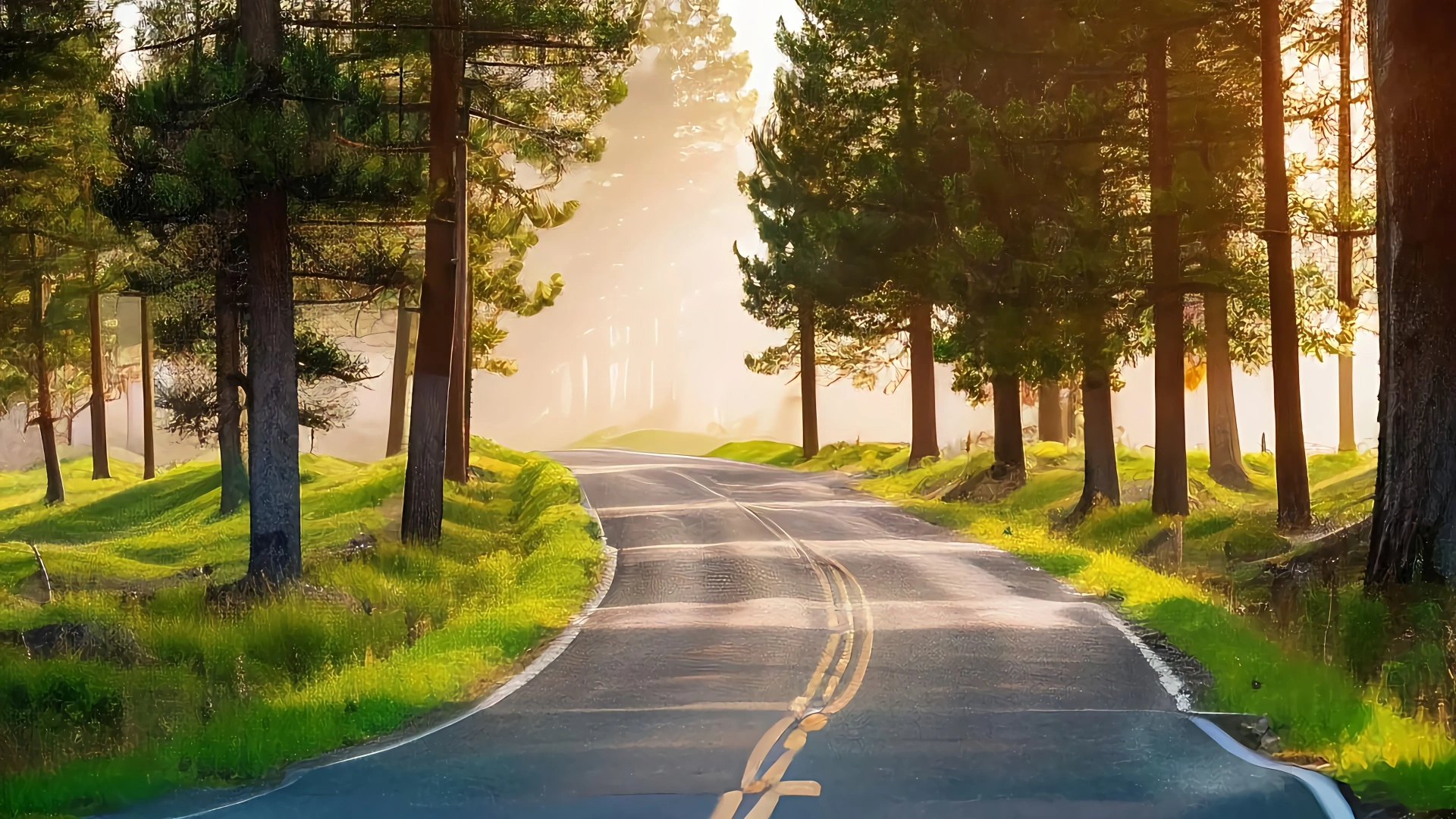
Choose Your Photo
Start by selecting the phone photo you want to turn into a wallpaper. For best results, choose photos with good lighting and clear subjects. Avoid overly compressed images or screenshots with lots of text.
📱 Phone Photo
Typically 1-3MB, 1080-4000 pixels
🖥️ Target Size
1920x1080 to 3840x2160
✨ Best Results
Well-lit, sharp original photos
Upscale with AI 2K/4K Upscaler
Use our dedicated AI 2K/4K Upscaler tool for the best results. This specialized tool lets you directly select your target resolution (2K/QHD or 4K/UHD), making it perfect for creating desktop wallpapers from phone photos.
🎯 Recommended Settings for Wallpapers:
- ✓ Choose 4K output for high-resolution monitors (3840x2160)
- ✓ Choose 2K output for standard monitors (2560x1440)
- ✓ Use Real-CUGAN model for photos with fine details
- ✓ Enable light denoising for phone photos
- ✓ Preview before downloading to check quality
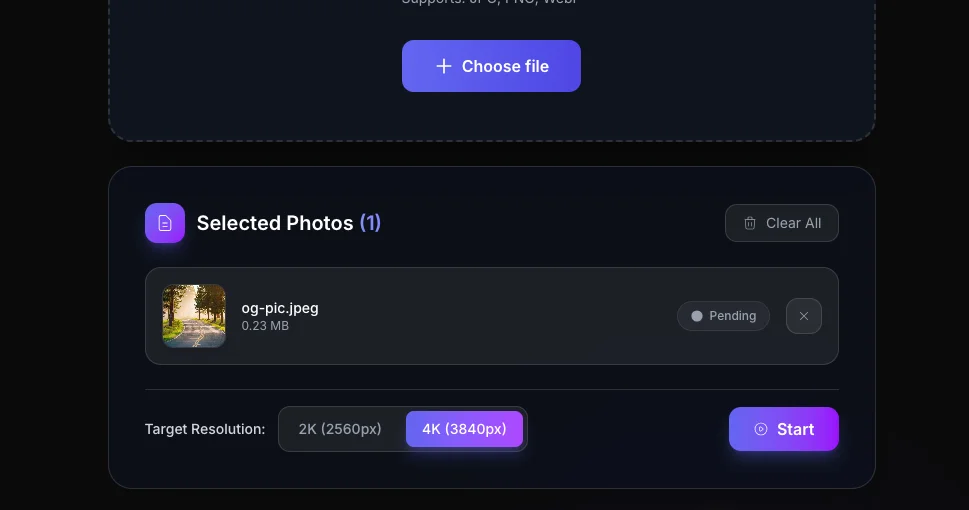
💡 Pro Tip: The AI 2K/4K Upscaler automatically calculates the optimal upscale factor based on your target resolution, ensuring your phone photo gets perfectly enlarged to wallpaper size without distortion.
Apply as Wallpaper
Once you've downloaded your upscaled image, set it as your desktop wallpaper. For the best fit, choose "Fill" or "Fit to Screen" depending on your aspect ratio preferences.
🖥️ Windows
Right-click desktop → Personalize → Background
🍎 Mac
System Settings → Wallpaper → Add Folder
See the Difference
Compare the original phone photo with the AI upscaled version


💡 Pro Tips for Perfect Wallpapers
📐 Match Aspect Ratio
Check your monitor's aspect ratio (16:9 is most common) and crop accordingly before upscaling.
🎨 Adjust Colors
Use photo editing tools to enhance contrast and saturation after upscaling for more impact.
💾 Save as PNG
For wallpapers, save in PNG format to preserve quality without compression artifacts.
🔍 Check Details
Zoom in to verify edges are sharp and no artifacts were introduced during upscaling.
🌄 Landscape Mode
Horizontal photos work best for desktop wallpapers. Portrait photos may need cropping.
🎯 Focus on Subject
Ensure your main subject is centered and won't be covered by desktop icons.
Frequently Asked Questions
What size should my wallpaper be?
Can I use any phone photo as wallpaper?
Will upscaling reduce image quality?
What's the best format for wallpapers?
Related Articles
How to Create 8K Images
Learn the complete workflow for creating stunning 8K images from start to finish.
Fix Blurry Compressed Images
Discover techniques to restore clarity to heavily compressed photos.
Upscale Low-Quality Illustrations
Special techniques for upscaling digital art and illustrations without artifacts.
Ready to Create Stunning Wallpapers?
Turn your favorite phone photos into beautiful 2K or 4K desktop wallpapers today with our AI 2K/4K Upscaler.
Try AI 2K/4K Upscaler