How to Fix Blurry Pictures for Free
Got a blurry photo you thought was ruined? Don't delete it yet — you can fix it for free, right in your browser, with no software to install.
We've all been there. You take what you thought was a great photo, then zoom in and... it's blurry. Maybe it's an old family photo that's seen better days. Maybe it's a screenshot that got compressed to oblivion. Maybe your hand shook just a little when you pressed the shutter.
Whatever the cause, a blurry picture isn't necessarily a lost cause. In 2026, AI photo restoration tools can recover detail you'd think was gone forever — and the best part? You can do it completely free, right in your browser.
In this guide, I'll walk you through exactly how to fix blurry pictures for free — step by step, no technical knowledge required.
Before/After: AI Blurry Photo Fix
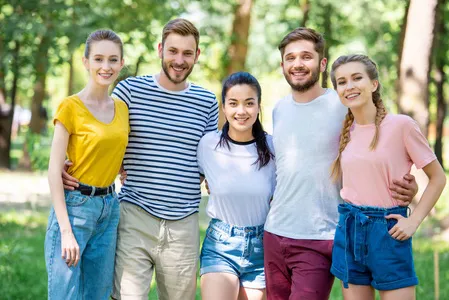
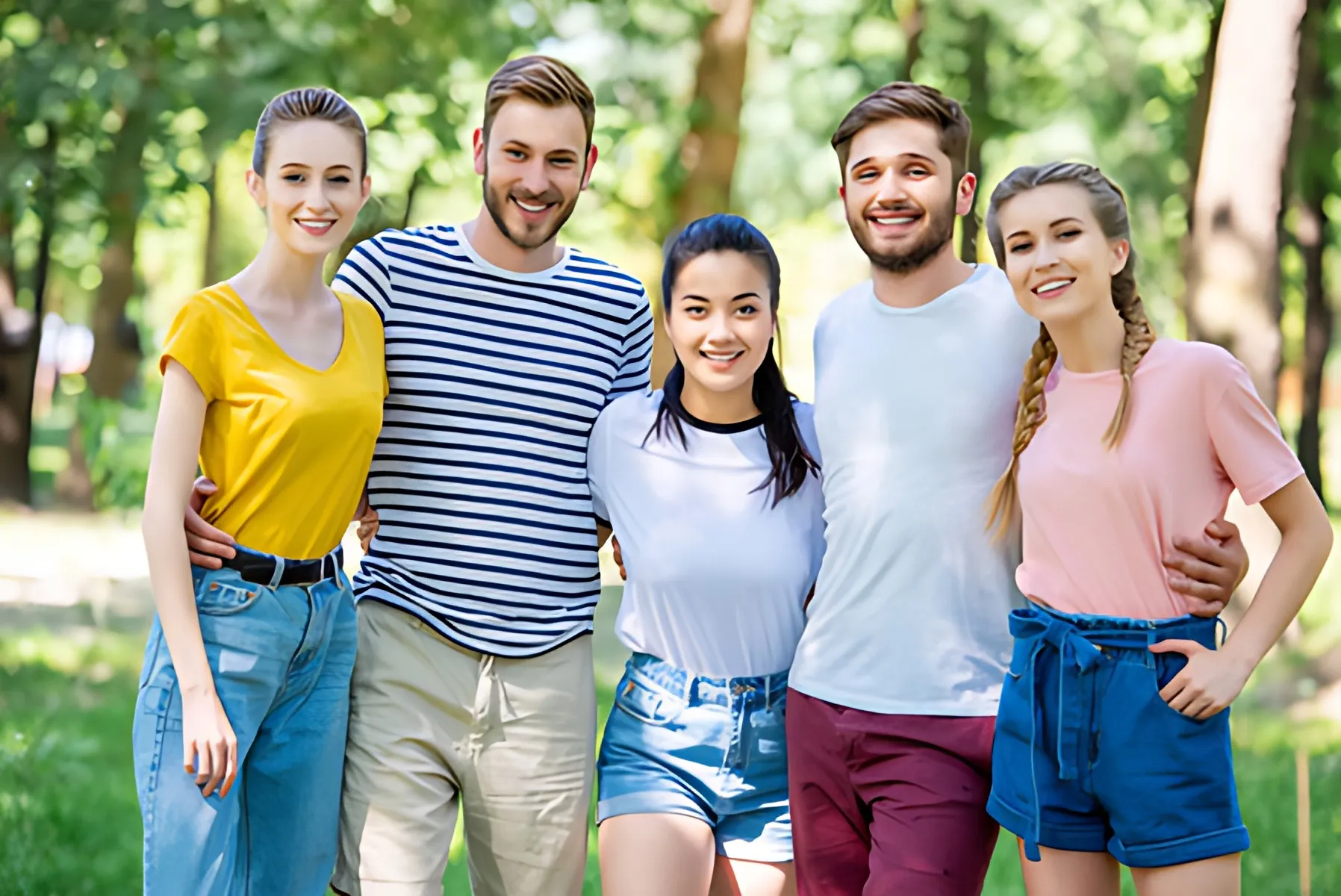
Left: Original blurry photo. Right: Same image after AI restoration — details recovered, edges sharpened, artifacts removed.
Why Are Your Photos Blurry?
Before you fix a blurry picture, it helps to understand what kind of blur you're dealing with. Different problems need different solutions.
📱 Compression Blur
The most common culprit. Social media apps, messaging platforms (WhatsApp, Messenger), and email all compress images aggressively to save space. The result: blocky patches, smeared textures, and that "muddy" look. This is the easiest type to fix with AI.
📷 Slight Motion Blur
Your hand moved a tiny bit when taking the photo. Faces look slightly soft, text is hard to read. Mild motion blur responds well to AI restoration, though severe cases are trickier.
🔍 Low Resolution
The camera simply didn't capture enough pixels. Common with old phone photos, webcam shots, or images enlarged too much. AI upscaling can add realistic detail where none existed before.
📷 Out-of-Focus Blur
The camera focused on the wrong thing. This is the hardest type to fix because the detail was never captured. AI can improve it somewhat, but don't expect miracles for severely out-of-focus shots.
Quick self-check:
If your photo looks blocky, has weird artifacts around edges, or the colors bleed together — it's probably compression blur, which AI fixes extremely well.
Fix Blurry Pictures with AI (Free, Browser-Based)
The fastest and most effective way to fix a blurry photo in 2026 is using an AI photo restoration tool that runs in your browser. No downloads, no sign-up, no credit card.
Our AI Photo Restore tool uses Real-ESRGAN — one of the best open-source AI models for image restoration — to analyze your photo and reconstruct missing detail. Here's how it works:
Open the AI Photo Restore tool
Go to AI Photo Restore — it opens right in your browser.
Upload your blurry photo
Drag and drop your image. Supported formats: JPG, PNG, WebP, BMP.
Choose your restoration settings
Select the upscale level (2x or 4x) and pick the right model — "Photo" for regular photos, "Anime" for illustrations and artwork.
Download your fixed photo
The AI processes everything in your browser (your photo never leaves your device). Download the result — sharp, clear, and free.
Why this approach works
100% Private
Processing happens entirely in your browser. Your images never get uploaded anywhere.
Truly Free
Free tier gives you daily usage. No credit card, no trial that expires, no watermarks.
AI-Powered
Real-ESRGAN reconstructs actual detail, not just sharpening edges like traditional filters.
Separate Photo & Anime Models
Different models for different image types — so your photos don't get the wrong treatment.
Other Free Ways to Fix Blurry Photos
AI restoration isn't your only option. Here are a few other approaches — they're free and worth trying depending on your situation.
🖥️ Try Desktop Photo Editors
If you already have Photoshop, GIMP (free), or Photopea (free, browser-based), you can try their sharpen and deblur tools. But a word of caution:
Traditional sharpening filters work by increasing contrast along edges. If your photo has compression artifacts, sharpening actually makes those artifacts more visible. For compression blur specifically, AI tools consistently outperform manual sharpening.
📱 Try Your Phone's Built-in Editor
Both iOS Photos and Google Photos have built-in "enhance" and "sharpen" features. They apply basic algorithms that can help with very mild blur.
Limitation: Phone editors boost sharpness globally — they can't selectively fix just the blurry parts. For anything beyond mild blur, you'll get better results with a dedicated AI tool.
🌐 Other Online AI Tools
There are other online AI upscalers and photo enhancers. Some are free with limits, others are paid. A few things to check before using any online tool:
- Does it process images on-device (private) or upload to a server?
- Is there a watermark on the free version?
- Does it support both photos and illustrations with separate models?
Related: For an in-depth look at why compression makes photos blurry and the science behind AI restoration, read our guide to fixing blurry compressed images.
What to Use for Your Situation
Not every blurry photo needs the same fix. Here's a quick reference:
| Your Situation | Best Fix | Expected Result |
|---|---|---|
| Photo compressed by social media or messaging apps | AI Photo Restore | Excellent — recovers most detail |
| Old scanned family photo with grain and blur | AI Photo Restore (4x) | Very good — reduces noise, sharpens faces |
| Slightly shaky hand — faces look a bit soft | AI Photo Restore | Good — mild blur responds well |
| Low-resolution photo that needs enlarging | AI Photo Restore (4x) | Excellent — AI adds realistic detail |
| Very mild blur — almost sharp enough | Phone's built-in editor | Decent — good enough for casual use |
| Severely out-of-focus — nothing is sharp | AI can improve but won't fully fix | Limited — detail was never captured |
5 Tips for the Best Results
Start with the best source you have
If the blurry photo was sent to you on WhatsApp, ask the sender for the original. The less compression the source has, the better the AI fix will be.
Pick the right model for your image type
Photos and anime/illustrations need different AI models. Using the photo model on anime art creates weird artifacts, and vice versa. Always match the model to your image type.
Don't always go for 4x
4x upscaling is great for enlarging photos, but if you just want to clean up compression artifacts without changing the size, 2x is often the better choice. It keeps the image closer to the original proportions.
Zoom in and compare
After the AI restoration, zoom in to 100% and compare with the original. Sometimes 4x is too aggressive — if you see unnatural textures, try 2x instead.
Save in the right format
After fixing your photo, save it as PNG or high-quality WebP to avoid re-compressing it. Saving back to JPEG just undoes some of the improvement.
Quick FAQ
Can I really fix blurry pictures for free?
Yes. You can fix blurry photos for free using browser-based AI tools. No credit card, no sign-up, no software to install. For mild blur and compression artifacts, AI restoration often produces remarkable results.
How does AI fix blurry photos?
AI models like Real-ESRGAN have been trained on millions of images to recognize patterns, textures, and natural details. When you upload a blurry photo, the AI analyzes it, identifies what's missing, and reconstructs high-frequency details — making the image sharper without simply increasing contrast like traditional sharpen filters.
What types of blurry photos can be fixed?
AI works best on compression artifacts (blocky JPEGs, smeared textures), mild motion blur, and low-resolution images that need upscaling. Severely out-of-focus photos are harder to fix because the detail was never captured. Old scanned photos respond well — AI can reduce noise and grain while sharpening details.
Are my photos private when using online AI tools?
Not all tools are equal. Browser-based tools like ImgUpscaleAI process images entirely on your device — nothing gets uploaded to a server. This is the privacy-safe approach. Always check a tool's privacy policy before uploading sensitive photos.
What's the difference between AI photo restore and just sharpening?
Traditional sharpening increases contrast along edges — it makes existing details more visible but can't create new ones. AI photo restoration analyzes the whole image and reconstructs missing textures, facial details, and fine patterns. It doesn't just make blurry edges more obvious; it actually recovers what should be there.
Fix Your Blurry Photo Now — Free
You don't need to download software, create an account, or pay anything. Just open the tool, upload your photo, and let AI handle the rest.
Related Articles
Why Images Get Blurry After Compression
Deep dive into JPEG compression, generation loss, and how Real-ESRGAN reverses the damage.
How to Upscale Low-Resolution Images for Free
Step-by-step guide to 2x and 4x upscaling, up to 8x magnification.
AI Upscaler Comparison
How our AI upscaler stacks up against other online tools.
Complete AI Image Tools Guide
Overview of all our tools — upscaler, 2K/4K, and photo enhancement.
A blurry photo doesn't have to stay blurry. With today's AI tools, you can turn "almost deleted" into "looks great" — for free, in seconds, without leaving your browser.